For RSECon26, authors of accepted submissions are asked to upload their slides, posters and other materials directly to Zenodo ahead of the conference. This new process allows submitters to modify their materials as necessary before 07:00 BST on the morning of their presentation. It also improves accessibility by allowing attendees to access materials during the presentation.
All material should be shared under the Creative Commons Attribution (CC BY) licence unless an alternative open licence is agreed upon in advance with the conference committee. We will accept materials by email for exceptional cases or if the submitter does not wish to make the materials publicly available.
Zenodo will be used as the default source for all digital material during the conference. We will accept materials by email only for exceptional cases or if the submitter does not wish to make the materials publicly available.
If your submission contains several smaller presentations, as common in BoFs or Workshops, only submit a single Zenodo record containing all slides and materials in the session. It is the responsibility of the submitter to ensure that materials are submitted to Zenodo.
You are required to print a physical copy of your poster in addition to submitting a digital version to Zenodo (ideally PDF but we also accept PNG or JPEG). Posters must be in portrait orientation of size A0. Fixtures for attaching to poster boards will be available at registration and provided by RSECon.
Submitting Your Materials to Zenodo
You’re asked to create a Zenodo record on our RSECon26 community that contains your materials or links to them. Please see instructions below on how to do so:
- Login to your Zenodo account at https://zenodo.org or create an account https://zenodo.org/signup/ if you do not already have one.
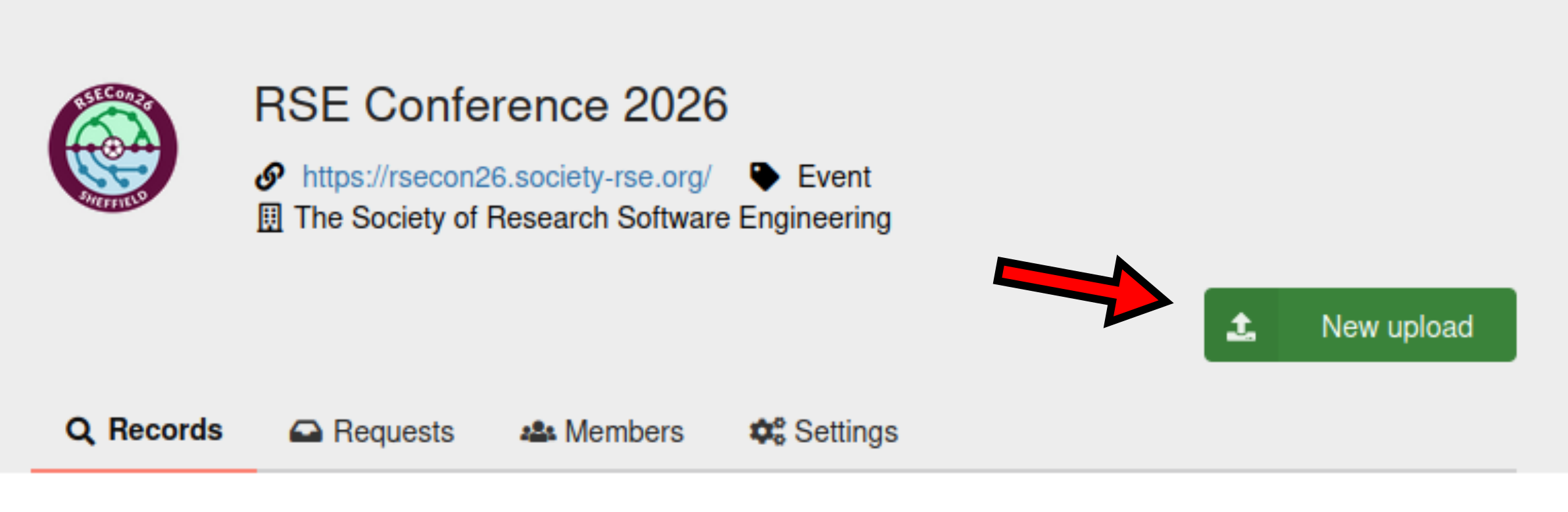
- After logging in, navigate to the rsecon26 community at https://zenodo.org/communities/rsecon26
- Press “New upload” and you will be presented a page to fill out the details of your record.
- See the guidelines in the section: “Guideline for Each Section of the Zenodo Submission Form” for more details on what fields are required.
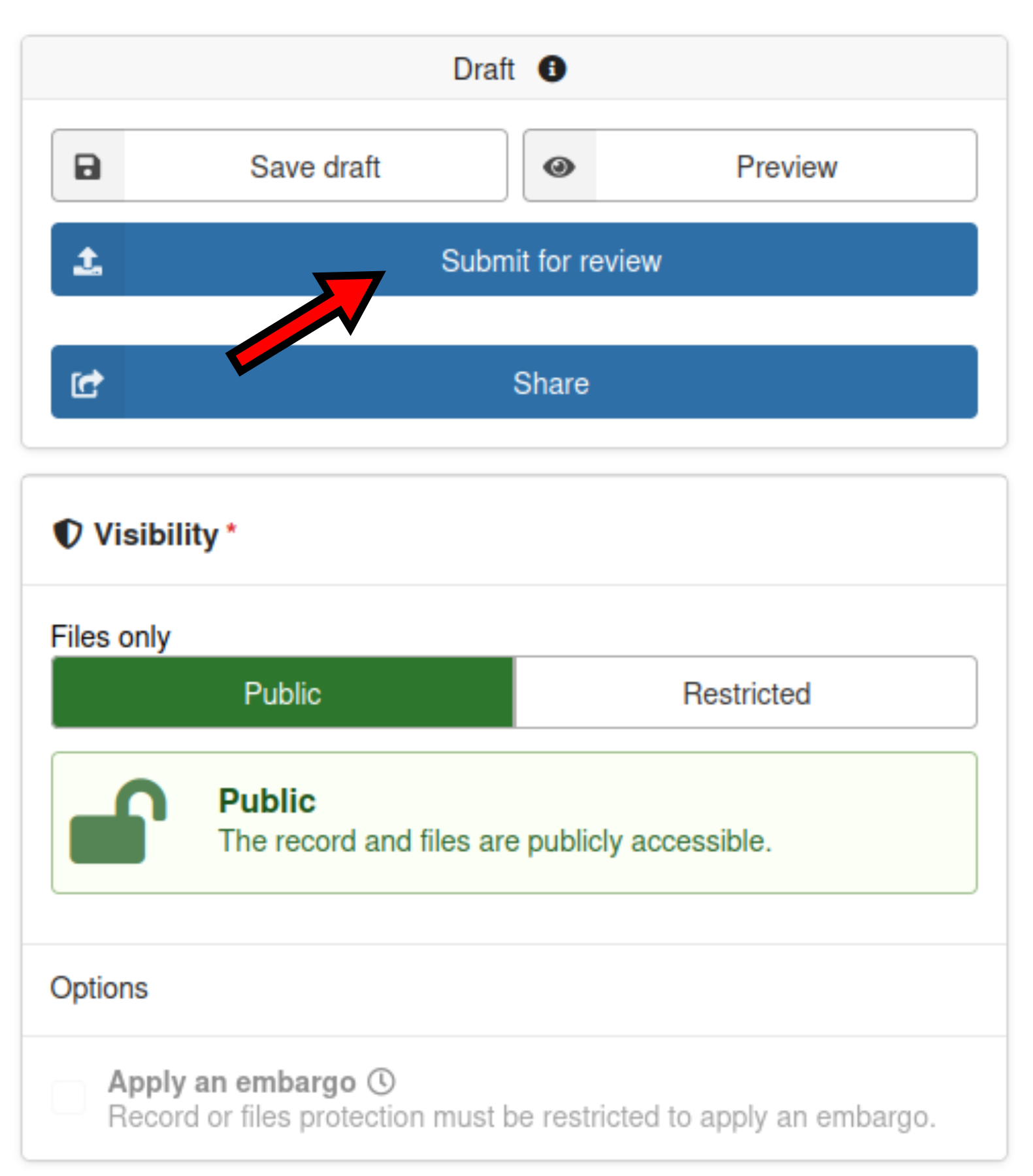
- Once the form is completed, click on “Submit for review” to make it available to the programme committee.
Changing Your Zenodo Submission After It Has Been Published
Once your Zenodo submission has been published you will still be able to change the metadata (e.g. title, authors, etc.) but not the uploaded files. In order to change the files, you must publish a new version of your record. See below for instructions.
- Navigate to your current submission on Zenodo.
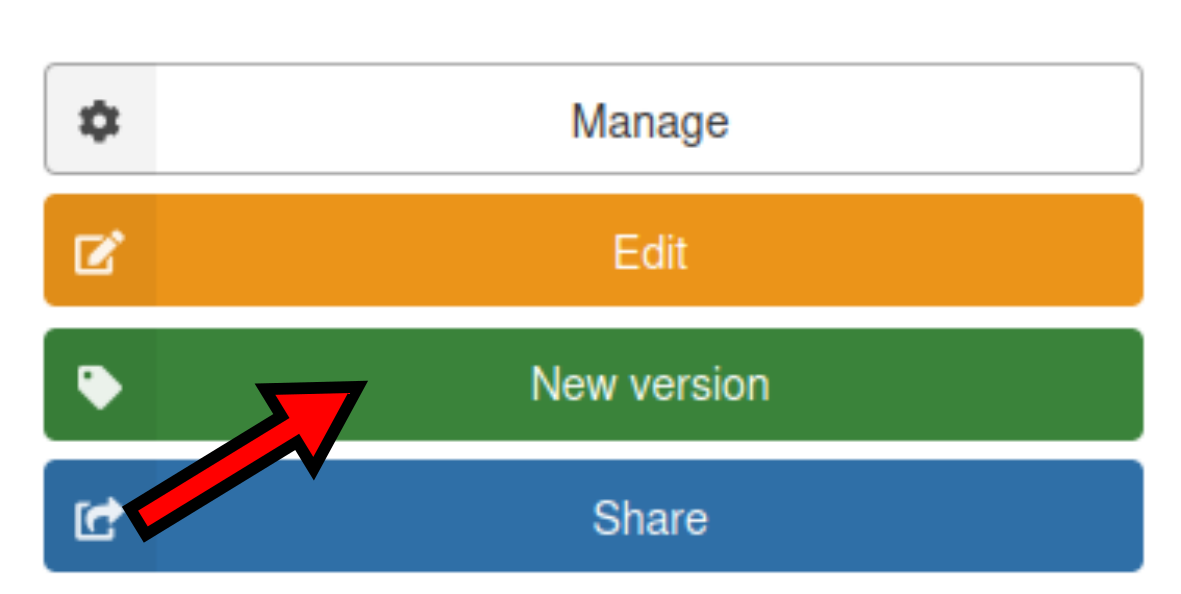
- In the toolbar to the right, click on “New version”.
- You’ll be taken to a page where you can upload the new files and update the record’s metadata.
- Under the “Recommended information” section, ensure you change the version number.
- Once you’re done, press “Publish” to publish a new version of your record to Zenodo.
Submitting Your Materials by Other Means
We will accept materials by other means only under exceptional circumstances. Please get in touch with the programme team at [email protected] by Friday 14th of August and we will consider it on a case-by-case basis.
Guideline for Each Section of the Zenodo Submission Form
Below is the RSECon26 guideline for submitting a record to the RSECon26 Zenodo community. We consider any section or fields not mentioned optional but would still encourage you to fill them in if it is relevant to your submission.
Files Section
Your slides, poster and accompanying materials should be uploaded to this section.
If your submission contains several smaller presentations, as common in BoFs or Workshops, only submit a single Zenodo record containing all slides and materials in the session.
- Slides
- Upload a PDF copy of your slides to be shared with the attendees. This is mandatory if you have slides.
- We also support Microsoft PowerPoint (.pptx) slides, please upload them together with a PDF copy.
- For online presentations with a URL link (e.g. Google Slides, Microsoft 365 PowerPoint, reveal.js) see Online Resources and Links below. Ensure that you give permission for anyone to view the resource and that a PDF copy of the slides is also uploaded.
- Poster
- A digital copy of your poster is mandatory if you are submitting a poster. PDF format is recommended but we also support image files (PNG and JPEG), all text in the image must be fully readable.
- Other supplementary materials such as documents, images and videos can be uploaded alongside your poster or presentation.
- Online resources and links can be provided by uploading a “links.txt” file, where each line in the file is a URL.
Basic Information Section
- Digital Object Identifier
- If your submission does not already have a DOI, click on “No, I need one”, then “Get a DOI now!”
- Otherwise enter a DOI you’ve obtained from another source.
- Resource type
- Talks, Walkthroughs, Workshop and BoF slides - Presentation.
- Poster - Poster.
- Title
- Ensure that the title matches your submission in Oxford Abstract.
- Add a subtitle with your submission ID:
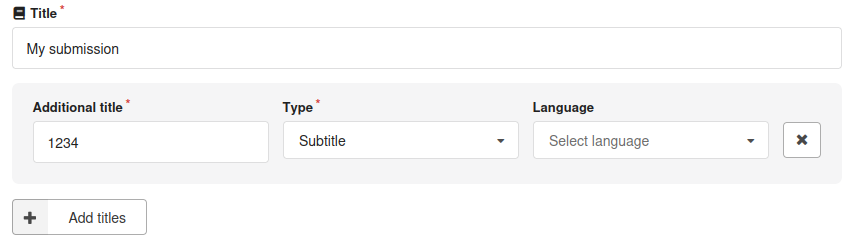
- Click on the “Add titles” button.
- Put your submission ID in the “Additional title” field. To satisfy the 3 character requirement, add 0 in front of your ID e.g. for submission 8, enter 008.
- For the “Type” field, select “Subtitle”.
- Authors/Creators
- Ensure all authors are added to this field.
- Description
- Add the abstract of your submission.
- Add descriptions for provided supplementary files.
- Licences
- The Creative Commons 4.0 licence is selected by default, please let us know if you plan to use a different type of licence
Recommended Information Section
- Contributors
- Ensure all contributors are added to this field.
- Language
- “English” and any other languages in your material.
- Version
- Semantic version string is recommended, see https://semver.org/ for the guideline.
- Publisher
- RSECon26
Conference Section
Fill this section with the following details:
- Title
- Research Software Engineering Conference 2026
- Acronym
- RSECon26
- Place
- Sheffield, UK
- Dates
- 9-11 September 2026
- Website